
The discussion comes up time and again: are Azure Reserved Instances (RI) or Azure Savings Plans (SP) the better option for running an IaaS-based application in Azure? There is no single answer to this question. In the following, we compare both options and evaluate them using different scenarios.
Brief definition of terms:
Azure Reserved Instance
A Reserved Instance is a commitment for a specific VM in a specific region for a specific duration. For example, a D8s_v5 VM in West Europe for three years. This reservation can be paid monthly over 3 years and offers a discount of up to 72%. In this specific example, the price advantage is approximately 62%. Important: the reservation must be paid regardless of whether it is used or not. You can find detailed documentation on this topic on MS Learn: Save costs with Azure Reserved VM Instances
Azure Savings Plan
Unlike a Reserved Instance, a Savings Plan does not reserve a specific VM in a specific region, but rather a fixed amount in EUR of compute. This can then be used flexibly for different VMs or other compute services. The committed amount is billed monthly regardless of whether it is fully utilized or not. If you consume more than committed, the excess is billed at the pay-as-you-go rate. Documentation for Savings Plans can be found here: What are Azure Savings Plans for Compute?
Scenarios
To achieve reasonable comparability, we consider the following scenarios and evaluate the costs. Imagine we have a time-tracking system. This system is primarily needed between 6:00 AM and 6:00 PM.
- Scenario A: The workload runs 12 hours a day and could theoretically be completely shut down during the other 12 hours
- Scenario B: The workload runs 12 hours a day but must remain available during the other 12 hours, albeit with less performance.
- Scenario C: The workload only runs on 21 working days for 12 hours and could be replaced by a less powerful VM during the remaining time.
| Assumption | Value | Unit |
|---|---|---|
| Calculated hours per month | 730 | hours |
| 30 days 6:00 AM - 6:00 PM | 360 | hours |
| 21 working days 6:00 AM - 6:00 PM | 252 | hours |
VM prices are based on data from the Azure pricing calculator (region “westeurope”):
| VM Type | Pay-as-you-go (PAYG) | RI | SP |
|---|---|---|---|
| D8s_v5 | 0.438 EUR/h | 0.166 EUR/h | 0.240 EUR/h |
| D4s_v5 | 0.213 EUR/h | 0.083 EUR/h | 0.0120 EUR/h |
| B4s_v2 | 0.183 EUR/h | 0.069 EUR/h | 0.097 EUR/h |
All prices are compute-only, excluding operating system costs. Pricing calculator as of 10/05/2023.
Scenario A
If the time-tracking system could truly be completely shut down when not in use, the following monthly VM prices apply:
| Configuration | Price |
|---|---|
| VM D8s_v5 as RI | 121.18 EUR/month |
| VM D8s_v5 30 days 12 hours/day (PAYG) | 157.68 EUR/month |
| VM D8s_v5 21 days 12 hours/day (PAYG) | 110.38 EUR/month |
This shows that pay-as-you-go pricing only makes sense when we get into the range of 21 days at 12 hours per day. The 62% RI discount on the pay-as-you-go price pays off from approximately 350 operating hours.
Scenario B
The workload runs 12 hours a day but must remain available during the other 12 hours with less performance.
If everything is at PAYG pricing with 12 hours on D8s_v5 and 12 hours on D4s_v5:
| VM Size | Price |
|---|---|
| D8s_v5 | 157.68 EUR/month |
| D4s_v5 | 81.03 EUR/month |
| Total Workload | 238.71 EUR/month |
| Difference to RI | + 97% |
If all prices are covered by a Savings Plan:
| VM Size | Price |
|---|---|
| D8s_v5 | 86.40 EUR/month |
| D4s_v5 | 44.40 EUR/month |
| Total Workload | 130.80 EUR/month |
| Difference to RI | + 8% |
If all prices are covered by a Savings Plan and a B-series VM is used for downsizing:
| VM Size | Price |
|---|---|
| D8s_v5 | 86.40 EUR/month |
| B4s_v2 | 35.89 EUR/month |
| Total Workload | 122.29 EUR/month |
| Difference to RI | + 0.92% |
We are already nearly at the RI price.
Scenario C
The workload only runs on 21 working days for 12 hours and could be replaced by a less powerful VM during the remaining time.
If everything is at PAYG pricing with D8s_v5 for 21 working days at 12 hours, and D4s_v5 for the remaining hours:
| VM Size | Price |
|---|---|
| D8s_v5 | 110.37 EUR/month |
| D4s_v5 | 104.68 EUR/month |
| Total Workload | 215.05 EUR/month |
| Difference to RI | + 77% |
If all prices are covered by a Savings Plan:
| VM Size | Price |
|---|---|
| D8s_v5 | 60.48 EUR/month |
| D4s_v5 | 57.36 EUR/month |
| Total Workload | 117.84 EUR/month |
| Difference to RI | - 2.8% |
Extended with a B-series VM instead of D4s_v5 under the Savings Plan:
| VM Size | Price |
|---|---|
| D8s_v5 | 60.48 EUR/month |
| B4s_v2 | 46.37 EUR/month |
| Total Workload | 106.85 EUR/month |
| Difference to RI | - 11.8% |
The last two configurations result in savings compared to a pure RI for a single VM size.
When considering not just pure compute costs but also including Windows licenses, the picture changes significantly. Even PAYG with 30 days at 12 hours of use and shut down otherwise becomes cheaper than an RI of the same VM size.
| Configuration | Projection |
|---|---|
| RI D8s_v5 | 376.68 EUR/month |
| PAYG 30 days 12 hours | 291.56 EUR/month |
| PAYG 21 days 12 hours | 198.58 EUR/month |
Including operating system and shut down when not needed.
| Configuration | Scenario B | Scenario C |
|---|---|---|
| D8s_v5 + D4s_v5 PAYG | 429.46 EUR/month | 386.91 EUR/month |
| D8s_v5 + D4s_v5 SP | 321.55 EUR/month | 289.69 EUR/month |
| D8s_v5 + B4s_v2 SP | 253.84 EUR/month | 202.22 EUR/month |
At peak, you can achieve savings of over 46% compared to the Reserved Instance. The key factor here is the price advantage for the OS with a B-series VM.
Implementation
Here is a brief example of how to put this into practice.
Deploying a VM
The Bicep code to deploy a VM can be copied here:
@description('Location to deploy the vNet and the VM')
param location string = 'westeurope'

@description('Name of the VM')
param vmName string = 'vm-sizingdemo01'

@description('Admin username for the VM')
param adminUsername string = 'demouser'

@description('Admin password for the VM')
@secure()
param adminPassword string = 'Pass!word123'

@description('Name of the vNet')
param vnetName string = 'vnet-sizingdemo'

@description('Name of the subnet')
param subnetName string = 'snet-sizingdemo'

@description('Name of the automation account')
param automationAccountName string = 'aa-sizingdemo'


resource vnet 'Microsoft.Network/virtualNetworks@2020-11-01' = {
  name: vnetName
  location: location
  properties: {
    addressSpace: {
      addressPrefixes: [
        '10.0.0.0/16'
      ]
    }
    subnets: [
      {
        name: subnetName
        properties: {
          addressPrefix: '10.0.0.0/24'
        }
      }
    ]
  }
}

resource publicIp 'Microsoft.Network/publicIPAddresses@2020-11-01' = {
  name: '${vmName}-pip'
  location: location
  properties: {
    publicIPAllocationMethod: 'Dynamic'
  }
}

resource nic 'Microsoft.Network/networkInterfaces@2020-11-01' = {
  name: '${vmName}-nic'
  location: location
  properties: {
    ipConfigurations: [
      {
        name: 'ipconfig'
        properties: {
          subnet: {
            id: vnet.properties.subnets[0].id
          }
          publicIPAddress: {
            id: publicIp.id
          }
        }
      }
    ]
  }
}

resource vm 'Microsoft.Compute/virtualMachines@2020-12-01' = {
  name: vmName
  location: location
  dependsOn: [
    nic
  ]
  properties: {
    hardwareProfile: {
      vmSize: 'Standard_D8s_v5'
    }
    storageProfile: {
      imageReference: {
        publisher: 'MicrosoftWindowsServer'
        offer: 'WindowsServer'
        sku: '2019-Datacenter'
        version: 'latest'
      }
      osDisk: {
        name: '${vmName}-osdisk'
        caching: 'ReadWrite'
        createOption: 'FromImage'
        diskSizeGB: 128
      }
    }
    osProfile: {
      computerName: vmName
      adminUsername: adminUsername
      adminPassword: adminPassword
    }
    networkProfile: {
      networkInterfaces: [
        {
          id: nic.id
        }
      ]
    }
  }
}

resource automationAccount 'Microsoft.Automation/automationAccounts@2022-08-08' = {
  name: automationAccountName
  location: location
  properties: {
    sku: {
      name: 'Basic'
    }
  }
}
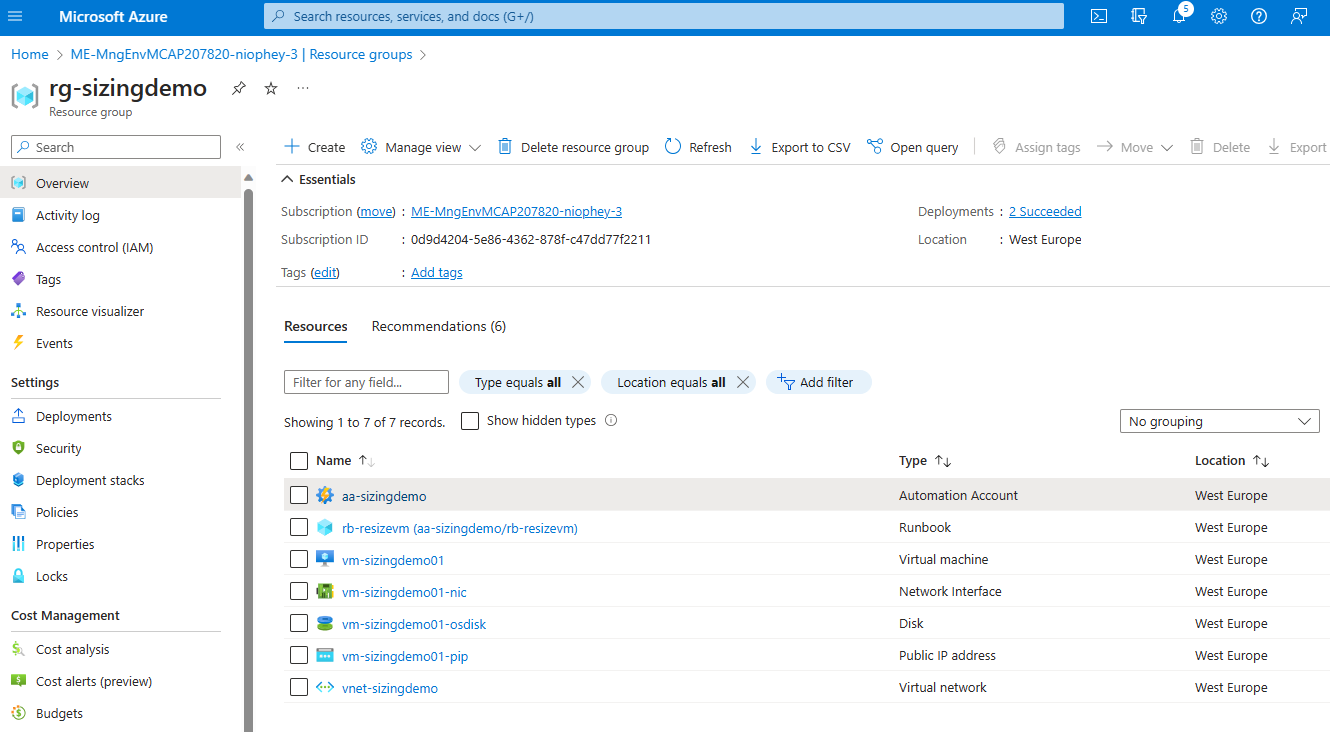
The parameters should be adjusted to your own preferences, especially the password for administrative access. In the Azure portal, the following is then deployed:
Automation Account
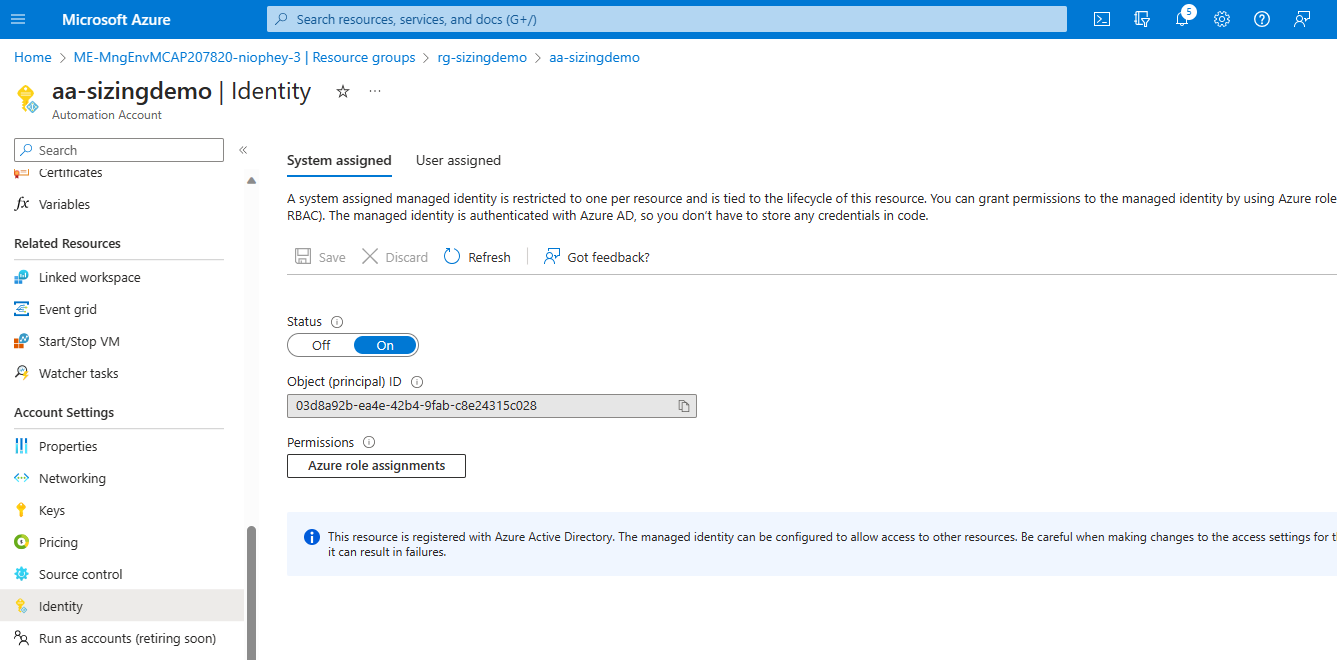
The Automation Account then needs permissions to resize the VM on the subscription or resource group. In this example, the Automation Account “aa-sizingdemo” has been set up with a System Assigned Identity and the corresponding Azure Role Assignment (cf. MS Learn):
Create a Runbook and Connect It to a Schedule
The PowerShell-based runbook for resizing the VM in the described scenario would look like this:
# Set variables
$resourceGroup = "rg-sizingdemo"
$vm = "vm-sizingdemo01"
# Set desired VM-Sizes
$normalsize = "Standard_D8s_v5"
$smallersize = "Standard_B4s_v2"

# login to Azure
Disable-AzContextAutosave -Scope Process
Connect-AzAccount -Identity

# check if the desired VM size is available
$availableSizes = Get-AzVMSize  -ResourceGroupName $resourceGroup -VMName $vm | Select-Object -ExpandProperty Name

if($availableSizes -notcontains $normalsize) {
    Write-Host "The desired normal VM size is not available."
    exit 1
}

if($availableSizes -notcontains $smallersize) {
    Write-Host "The desired smaller VM size is not available."
    exit 1
}

# Check current Size
$updatevm = Get-AzVM -ResourceGroupName $resourceGroup -Name $vm
$actualsize = $updatevm.HardwareProfile.VmSize
Write-Host "Current Size is $actualsize"

$targetsize = ($actualsize -eq $normalsize) ? $smallersize : $normalsize

# Deallocate the VM
Stop-AzVM -ResourceGroupName $resourceGroup -Name $vm -StayProvisioned -Force
Write-Host "The VM is deallocated."

Write-Host "Target Size is $targetsize"
$updatevm.HardwareProfile.VmSize = $targetsize

# Resize the VM
Update-AzVM -ResourceGroupName $resourceGroup -VM $updatevm
Write-Host "New Size is $targetsize"

# Start the VM
Start-AzVM -ResourceGroupName $resourceGroup -Name $vm
Write-Host "The VM is started."
NOTE: There is now an Extension for Visual Studio Code to manage the runbook, schedule, and entire configuration directly in VS Code.
NOTE: This is only an exemplary implementation. For production use, a solution that automates resizing based on tags is recommended. Examples can be found in the Runbook Gallery or at aka.ms/AzureAutomationGitHub.